Download VA Blue Button in Five Minutes and Keep Records Encrypted
Download your VA Blue Button file from My HealtheVet in about five minutes. Step-by-step download, immediate privacy actions, sharing tips, and encrypted...

Download VA Blue Button in Five Minutes and Keep Records Encrypted
Yes, you can download your VA health records with the Blue Button feature. Sign in to Va, open your Health Summary or “Review medical records online,” and click the Blue Button or “Download.” That’s the whole verdict. The rest of this guide walks you through exactly where to click, what you’ll get, and how to keep that file safe once it is on your device.
TL;DR:
- Veterans with verified My HealtheVet accounts can download complete health records, including labs, medications, allergies, and immunizations, via the Blue Button feature.
- Downloading is faster and more reliable on a desktop or laptop browser, with recommended verification and file management steps to ensure security and usability.
- Privacy ends once the records are on your device, so moving files to encrypted folders and avoiding unprotected sharing is crucial for safety.
- Files may contain incomplete or inaccurate data due to VA entry gaps, so recipients should verify dates, provider names, and medication details before relying on them.
- Summarizing and consolidating records before sharing improves clarity for new providers and ensures emergency accessibility.
Table of Contents
- Where to find the blue button download on VA.gov
- Step-by-step: download your VA Blue Button report
- What’s in the file, and why format matters
- What happens to your privacy the moment you download
- Who can download Blue Button records
- Sharing your downloaded records with a new provider
- Getting help when something goes wrong
- Turning a download into a real health history
- Keep your VA download secure with Medfiles
- Sources
Where to find the blue button download on VA.gov
Your Blue Button lives in two places, and they’re connected. The main entry point is the My HealtheVet portal, where your dashboard shows a “Blue Button (Health Summary)” tile or a similar download link near your records. VA.gov also hosts a dedicated “Review medical records online” page that pulls from the same My HealtheVet system.
Once you’re logged in, look for these visual cues:
- A blue rectangular button labeled “Download” or “Blue Button”
- A “Customize Your Health Summary” or “Health Summary” link near the top of your records dashboard
- Menu options for “VA Blue Button Report” or “Continuity of Care Document”
Identity-verified accounts unlock the full range of downloadable records. If you’ve only completed basic verification, you may see limited options. Veterans registered as patients at a VA facility get expanded access once their identity is confirmed, so it’s worth finishing that step before you start hunting for the download link.
Step-by-step: download your VA Blue Button report
Downloading your Blue Button report takes about five minutes once your account is verified. Here’s the sequence:
- Sign in to My HealtheVet with your verified account. If you haven’t verified your identity yet, complete that step first. It gates access to full downloads.
- Navigate to “Review medical records online” or the Health Summary section on VA.gov.
- Select the data sections you want. You can typically choose labs, medications, allergies, immunizations, and visit summaries individually or all at once.
- Set a date range. Pulling three years instead of your entire history keeps the file manageable if you only need recent activity.
- Choose your format. VA typically offers plain text or PDF.
- Click download and wait for the file to generate. Larger date ranges take longer.
- Confirm the file opened correctly before closing the browser tab.
- Save an unedited original copy somewhere safe before you do anything else with it.
Pro Tip: Download on a desktop or laptop instead of your phone whenever you can. VA’s download tools render more reliably on a full browser, and it’s much easier to verify the file saved completely before you close out.
Once the file lands on your device, don’t treat that as the finish line. The download itself is only step one. What you do with the file next determines whether it’s actually useful in an emergency or just another PDF buried in your downloads folder.
What’s in the file, and why format matters
Your Blue Button download typically includes lab and test results, current medications, allergy records, immunization history, and care summaries or clinician notes, according to VA’s own description of the records available through My HealtheVet. VA commonly provides these downloads in plain text or PDF, though format availability has varied historically depending on the version of the portal you’re using.
There’s no charge to use Blue Button through participating VA portals, but availability and file completeness depend on how thoroughly your records were entered into the system in the first place.
Before you rely on the file, check it for:
- Correct dates on lab results and visit summaries
- Provider names attached to each entry
- A complete, current medication list with dosages
If something looks off or missing, that’s usually a data entry gap on VA’s side, not a download error. Contact support before assuming the file is final.
What happens to your privacy the moment you download
Here’s the part most people miss. While your records sit inside VA’s portal, VA’s security protects them. The second that file lands on your laptop or phone, that protection ends. You’re now the one responsible for keeping it safe.
Take these steps right away:
- Move the file into an encrypted folder or an encrypted drive, not your regular Downloads folder
- Turn on full-device encryption if your laptop or phone doesn’t already have it enabled
- Never email the raw file as an unencrypted attachment
- Use secure file-sharing or provider portal uploads instead of a plain email
For the long term, keep encrypted backups in more than one place, use a password manager to protect any encryption keys, and consider a HIPAA-ready personal health record platform built for organized, secure storage rather than a loose collection of downloaded files sitting in a folder.
Pro Tip: Rename the file with the download date the moment you save it. “VA_Records_2026_03.pdf” is far easier to find in six months than “download (3).pdf.”
Who can download Blue Button records
Veterans enrolled in VA health care with a verified My HealtheVet account can download their own records directly. That’s the core rule, and it covers most people reading this.
Eligibility gets more nuanced for a few groups; for example, those involved with CHAMPVA have different processes explained in detail on the records submission page at Life IVF Center.
- Dependents using VA-connected care may need their own linked account rather than relying on a veteran’s login.
- CHAMPVA beneficiaries typically access records through their own program channels rather than the standard My HealtheVet Blue Button, since CHAMPVA operates as a separate benefit.
- Authorized representatives (a spouse or adult child managing care for a veteran) usually need documentation on file with VA before they’re granted access.
If your situation involves shared custody of records or a beneficiary program outside standard VA enrollment, call support before assuming the same download steps apply to you.
Sharing your downloaded records with a new provider
Once you have the file, you have a few solid ways to get it into a new provider’s hands. Most hospital and clinic portals accept a direct upload of your PDF or text file during intake. Secure messaging inside a provider’s own portal works too, and it’s safer than email. Encrypted file transfer services are the right call when a portal upload option doesn’t exist. Printed copies still work fine for smaller practices that haven’t caught up to digital intake yet.
Before you hand the file over, consider trimming it into a short summary that highlights current medications, allergies, and your most recent test results. A new provider dealing with fifteen pages will find that far more useful than a full unedited dump.
- If you’ve downloaded records from multiple sources, whether VA, a private provider, or Medicare, consolidating them into one organized file or encrypted folder saves you from handing over three disconnected documents later.
That consolidation step is exactly where a lot of veterans lose track, since Blue Button files rarely merge automatically with records from outside providers.
Getting help when something goes wrong
My HealtheVet support is available Monday through Friday, 8:00 a.m. to 8:00 p.m. ET, and that’s your first call for account or download issues.
Before you call, try these quick fixes:
- Switch browsers. Some download tools behave inconsistently on older browser versions.
- Disable pop-up blockers, since the download often opens in a new window.
- Clear your browser cache if the page won’t load your records.
- Confirm your identity verification status is complete, not pending.
If records are missing entirely or your account won’t verify, that’s when you escalate directly to VA support rather than troubleshooting further on your own.
Turning a download into a real health history
A downloaded file solves one problem and creates another. You have your records, but a single PDF sitting in a folder isn’t the same as a health history you can hand to a paramedic or a new specialist in seconds. Consolidating downloads from VA and outside providers into one encrypted, organized place is what actually pays off during an emergency or a move.
That’s the gap platforms built for medical record organization are designed to close: not replacing the download, but giving it a permanent, secure, and useful home.
— Team
Keep your VA download secure with Medfiles
A personal health record platform can keep your downloaded files protected with end-to-end encryption and automatically organize your labs, medications, and care summaries so you’re not digging through a folder during an emergency.
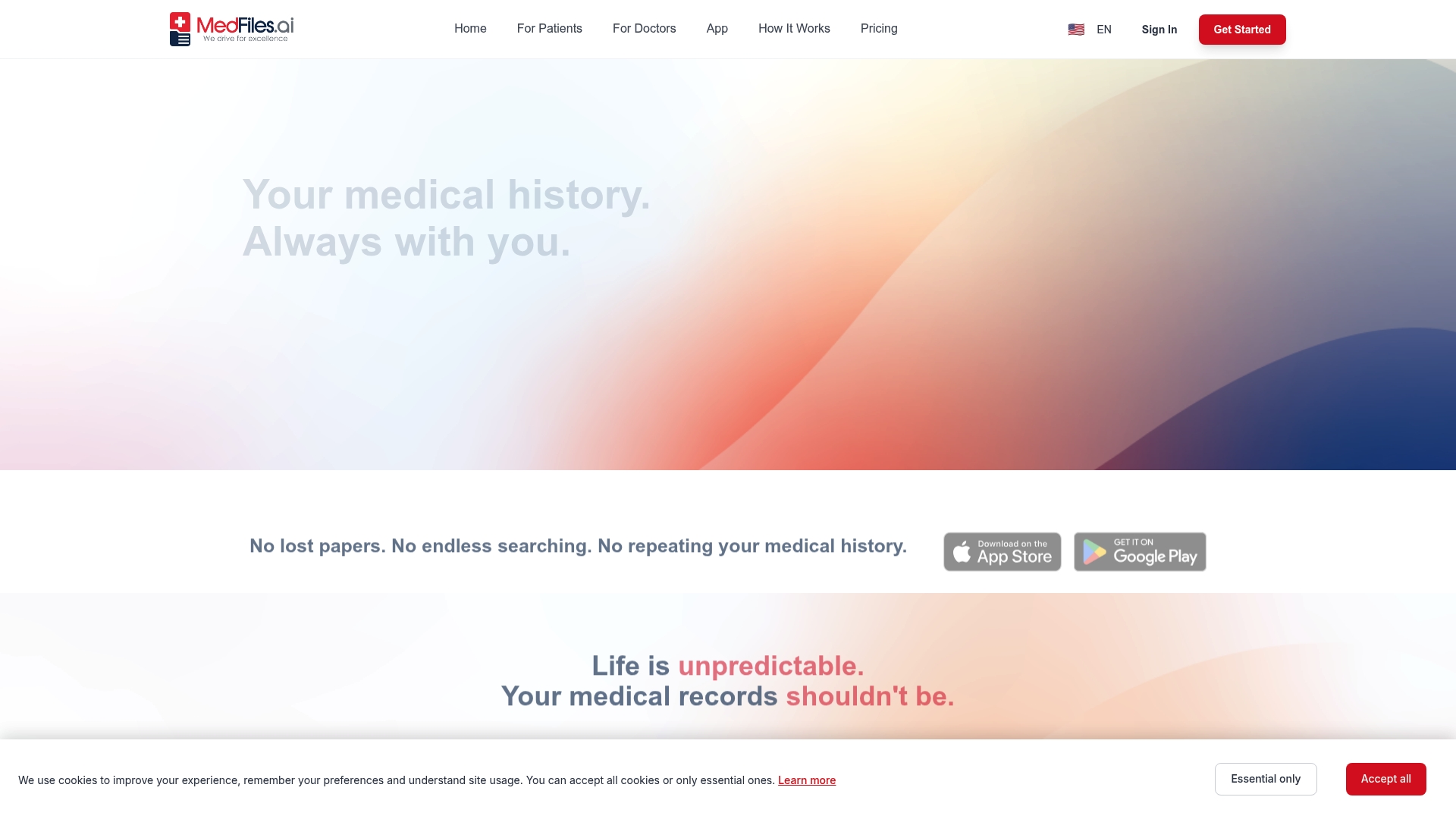
If you’re managing records for a spouse, kids, or an aging parent alongside your own VA history, Medfiles’ multi-profile management keeps every family member’s medical documents separate but instantly accessible. Need to hand your records to a new provider? Secure sharing sends exactly what they need without emailing an unprotected PDF. Start a free trial and upload your Blue Button download to see your complete medical history organized in minutes, no credit card required.
This article is general information, not a substitute for advice from a qualified doctor. Consult a qualified healthcare professional about your own circumstances before acting on anything here.
Sources
- Manage your health records - VA
- Blue Button | HealthIT (ONC)
- Patient access to records and the Blue Button (PMC article)